
If you are working in an enterprise Dynamics 365 Field Service implementation with RSO (Resource Scheduling Optimization) add-in, you must have felt that there is limited information about RSO and there aren’t many blog posts available either. One reason is that RSO doesn’t offer any trial.
To address this, I am starting a blog series on setting up RSO based on the business requirements and debugging it.
To start with, when you are setting up RSO as per your business requirement or debugging existing optimization results, the first step you will be doing is analysing the Optimization Request run to figure out what went wrong or what didn’t work as expected and you will adjust the Scope/Goal or most of the time, it will be data captured against Resource Requirement and/or Booking.
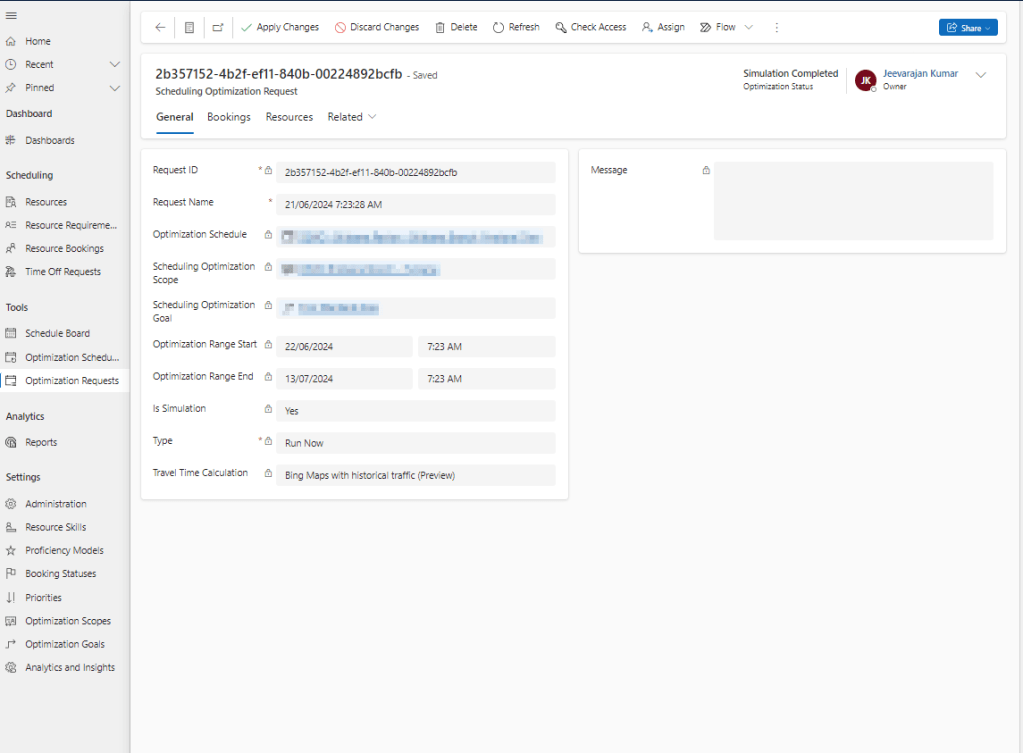
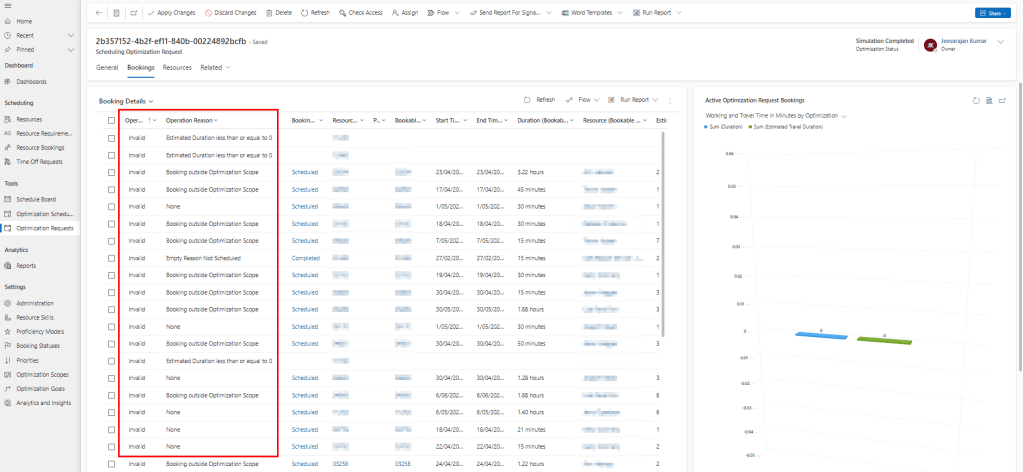
Operation and Operation Reason in the optimization requests against the Resource Requirement or Booking Microsoft shows if it went well or not. Some of the Operation and Operation Reason are straightforward
E.g.
- Create: a new booking has been created for the resource requirement.
- Update: an existing booking has been updated with a new bookable resource or the estimated arrival time has been updated due to the changes in the existing booking of the resource etc.
- Invalid – Estimated Duration less than or equal to 0: Resource requirement duration is 0
However, not all the Operation Reasons have details that are sufficient to understand what is missing in the Resource Requirement or Booking to do the fix. Below are the rest of the Operation and Reasons that are not straightforward and could cause confusion.

E.g
- Invalid – None
- Invalid – Empty Reason Not Scheduled
- Unchanged – None
Here’s the list of Operation, Operation Reasons and their explanation that I have collected from the Microsoft team on different occasions.
| Sno | Operation | Operation Reason | Definition |
| 1 | Invalid | Requirement Status is not Active | Resource Requirement is not active i.e. msdyn_status = Cancelled/Completed. |
| 2 | Invalid | Booking outside Optimization Scope | Bookings got excluded from optimization scope definition due to the ‘Now or After’ settings in the Booking view under scope. |
| 3 | Invalid | Estimated Duration less than or equal to 0 | Resource Requirement’s duration is 0 |
| 4 | Invalid | Latitude or Longitude invalid | Resource Requirement’s Latitude and/or longitude is empty or invalid (Map provider doesn’t recognize the lat/long) |
| 5 | Invalid | Scheduling Window outside of Optimization Range | Resource Requirement’s: Time From Promised and Time To Promised OR Date Window Start +Time Window Start, Date Window End + Time Window End is outside of the Optimization Request’s optimization range. |
| 6 | Invalid | Optimization is not enabled | Resource Requirement’s scheduling Method is not set or set to ‘Do Not Optimize’. |
| 7 | Invalid | Booking without requirement | Bookings used it in the scope might have been created directly under without requirements. |
| 8 | Invalid | Requirements Belonging To a Resource Group, cannot be scheduled | Resource Groups aren’t supported by RSO |
| 9 | Invalid | Lock to Pool type of Resource is not currently supported by RSO | Pools aren’t supported by RSO |
| 10 | Invalid | Bookings overlaps with Optimization Start Range | Applies to Single Resource Optimization. Booking’s Start Time is same as the optimization range start date time |
| 11 | Invalid | Bookings overlaps with Optimization End Range | Applies to Single Resource Optimization. Booking’s End Time is same as the optimization range end date time |
| 12 | Not Scheduled | None | Unable to find a matching resource within the scope and given Goal constraints. |
| 13 | Delete | None | Due the limitations in no. of resources available, RSO deletes the existing booking for some jobs and allocate those resources to more suitable jobs. |
| 14 | Invalid | None | RSO at times marks the Bookings that are outside of the range with Operation as Invalid and Operation Reason as None due to the behaviour of the product. There is no defined segregation on exactly what time when RSO run or for what conditions (data) in Bookings it shows ‘None’ vs. ‘Booking outside Optimization Scope’, it is purely based on the RSO algorithm execution. |
| 15 | Unchanged | None | Scheduling Method for a Resource Requirement is not set to Optimize, RSO will have Operation as Unchanged and Operation Reason as None. |
| 16 | Invalid | Empty Reason Not Scheduled | In the Optimization Request Bookings (ORB) page, we might get a visual bug where the “reason” is blank until you click on the booking itself, but after you have clicked on the booking it will show up on the ORB page. |
| 17 | Invalid | Requirement is partially fulfilled already, can’t be optimized | Resource Requirement was already booked but the associated Booking was not included in the scope. |
| 18 | Invalid | Templates Cannot Be Scheduled | Requirements Groups Templates attempt to schedule. RSO cannot schedule template |
| 19 | Invalid | Predecessor or successor out of optimization scope | In case of multi requirements. Predecessor and successor all need to be included in scope. |
Hope this helps when you setup or debug RSO results to further adjust your data or RSO settings.
 Jeevarajan Kumar
One thought on “A guide to RSO Configuration & Debugging – Optimization Requests”