
While moving Dynamics 365 Marketing (Customer Insights Journey) assets from one environment to another, you might encounter a solution export error due to special characters in file names—particularly the # symbol.
Background
I have transferred Marketing data from one environment to another using the Configuration Migration Tool as Microsoft recommends here: https://learn.microsoft.com/en-us/dynamics365/customer-insights/journeys/transfer-data. However, if you had done data transfer you must have noticed that the images in Assets are cropped to a thumbnail size. It was quite frustrating as users had to delete them and upload them again in the new environment. Thanks to Amey Holden for recommending transferring Assets via solution export/import. Amey has great articles about Marketing, check them out.
I added the assets to the Solution under More-> Other-> Files, exported them and imported them into the target environment and it worked fine.
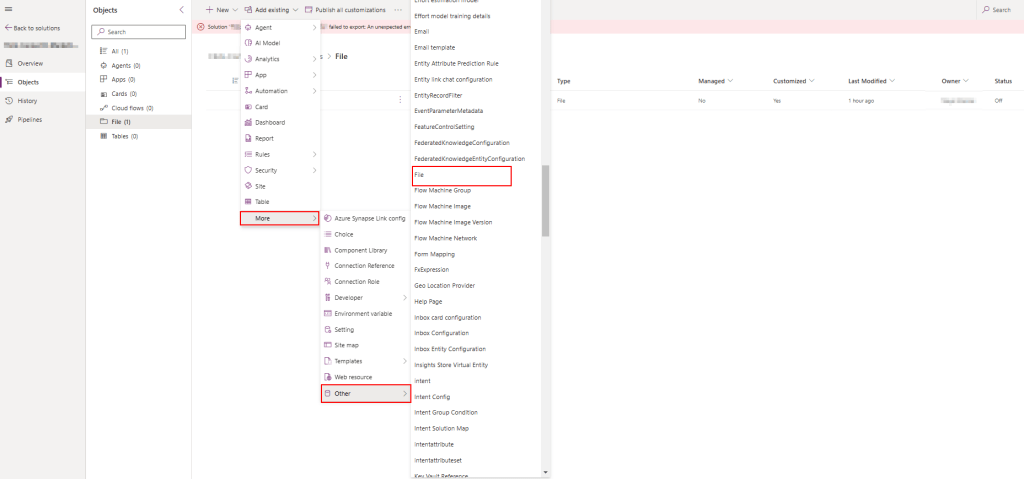
However, I recently faced another issue while trying to export the solution. The export kept failing without any details about the error, it was just throwing below error, ‘[solution] failed to export. An unexpected error occurred.’

Cause
After spending a couple of hours, I realized that # in some of the image’s names was causing the export process to fail. Even though the system allows you to upload images with #, it becomes a roadblock to package them into a solution.
Fix
Thinking it was a simple naming issue, I renamed the images, replacing the # symbol with – symbol. But surprisingly, the solution still wouldn’t export! It seemed like the system was still referencing the original file name somewhere in the backend, even after renaming it.
I had to download the images, rename them, delete existing images and upload them. With that, I was able to successfully export the solution and import it into the target environment, getting the images into it.
Please don’t forget to like and share this post. Happy Learning!
 Jeevarajan Kumar