
Introduction
In Contact Centres, the “Voice” channel is a critical channel because customers call when issues are urgent or complex, and they want a human fast. Voice channel in D365 Contact Centre lets you route those calls to the right agent/queue and track the full interaction history in CRM. The voice channel is linked to the workstream, which is a container to enrich, route, and assign work items in Contact Center.
To make it work end-to-end, you must: connect ACS, get a phone number, and configure Event Grid subscriptions so Dynamics 365 can receive call/SMS/recording events.
In this Voice channel setup series, we will see how to
- Connect your org to ACS. Get a new phone number or sync the existing phone number in ACS (Part 1)
- Configure Event Grid webhooks (incoming call/recording / SMS) so D365 can receive events (Part 2)
- Bringing your own telco phone number into ACS and connecting to Contact Center (Part 3)
D365 Contact Center is a Copilot-first, cloud-based product that brings intelligence, automation, and efficiency to every engagement channel in the customer relationship management (CRM) solution of your choice.
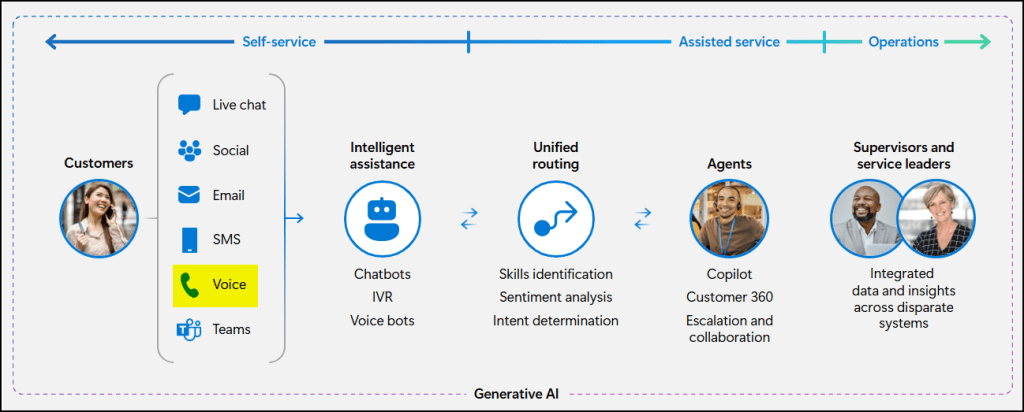
Referred from: https://learn.microsoft.com/en-us/dynamics365/contact-center/implement/overview-contact-center
To set up a call channel, you will need a phone number. When you avail of the Contact Centre trial, you’ll get a free US toll-free number with 60 mins free mins. Once the trial is ended, or if you need a custom phone number, you can end the trial and get the phone number via Azure Communication Services (ACS).
Trial phone number and its minutes remaining
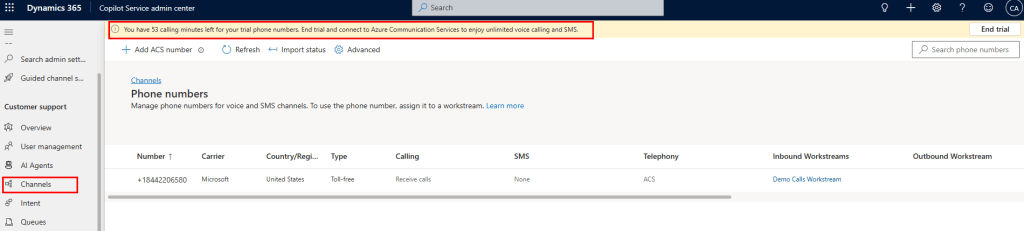
ACS phone numbers are available for certain countries only as provided in the list https://learn.microsoft.com/en-us/azure/communication-services/concepts/numbers/sub-eligibility-number-capability
For the other countries, you will need to bring in your phone number from your telco provider which can be integrated with Contact Centre via direct calling, which we will see in Part 3.
Connect D365 Contact Center to ACS
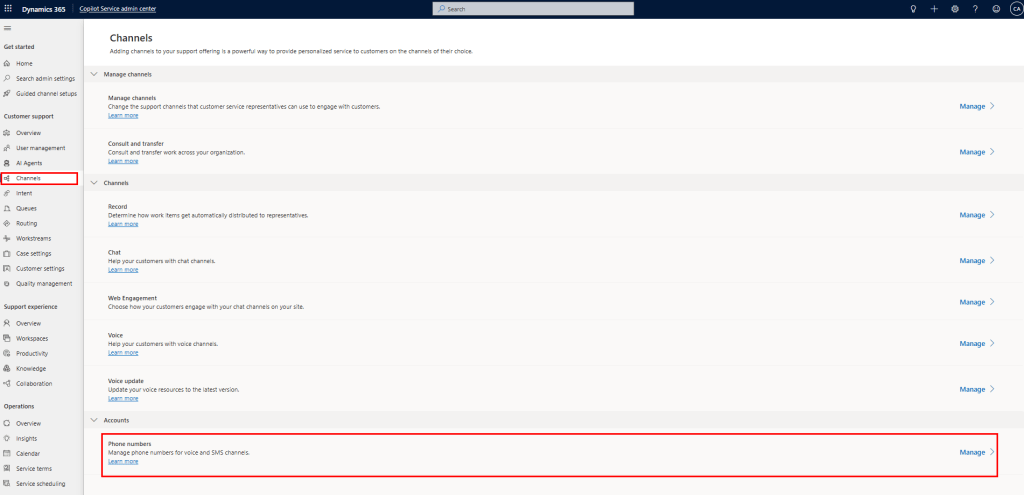
To set up a new phone number from ACS, you will need to end the trial to get the below Get started button visible. Unless the trial is ended, Azure Communication Services won’t be visible in the Advanced Settings -> Manage Telephony.
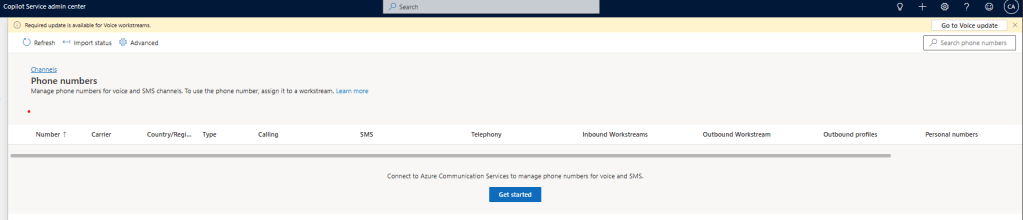
After ending the trial, Azure Communication Services should be visible under Advanced Settings -> Manage Telephony. You can either create new Azure resources from here or choose existing Azure resources.
Create new Azure resource:
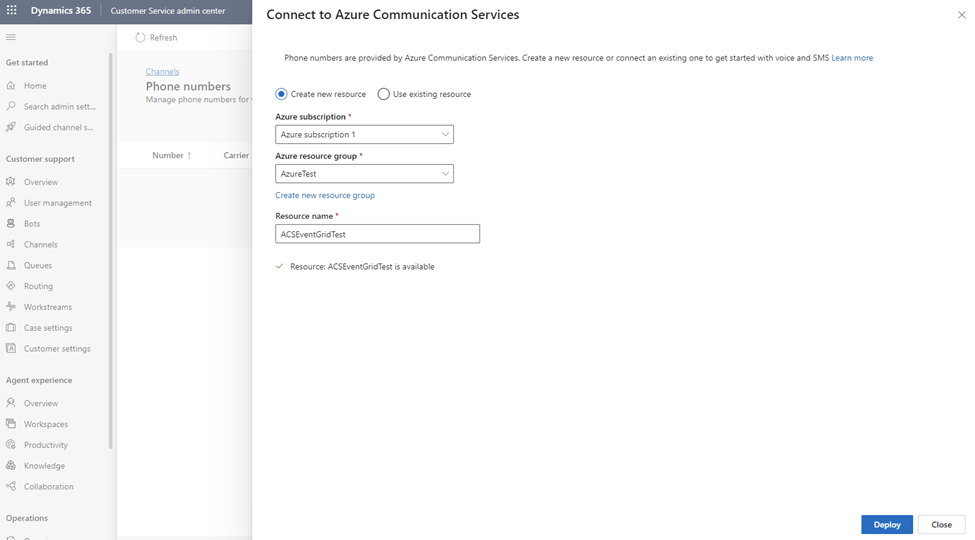
If you are creating a new one, select your subscription, resource group and resource name and proceed.
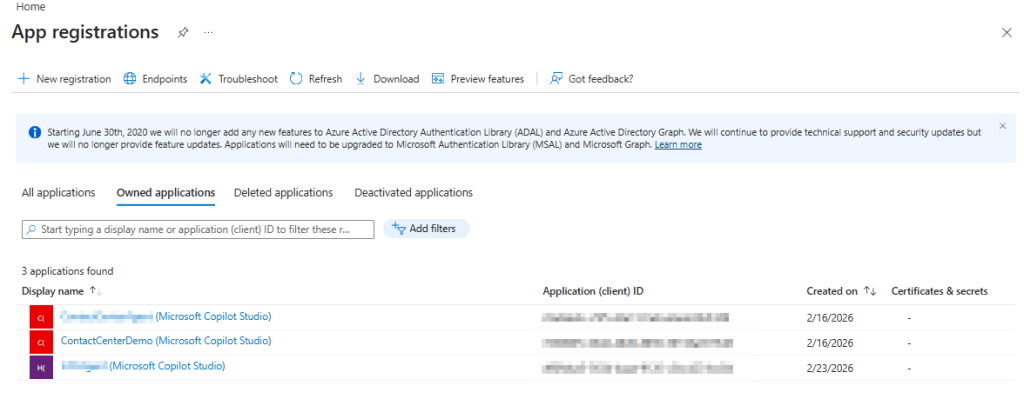
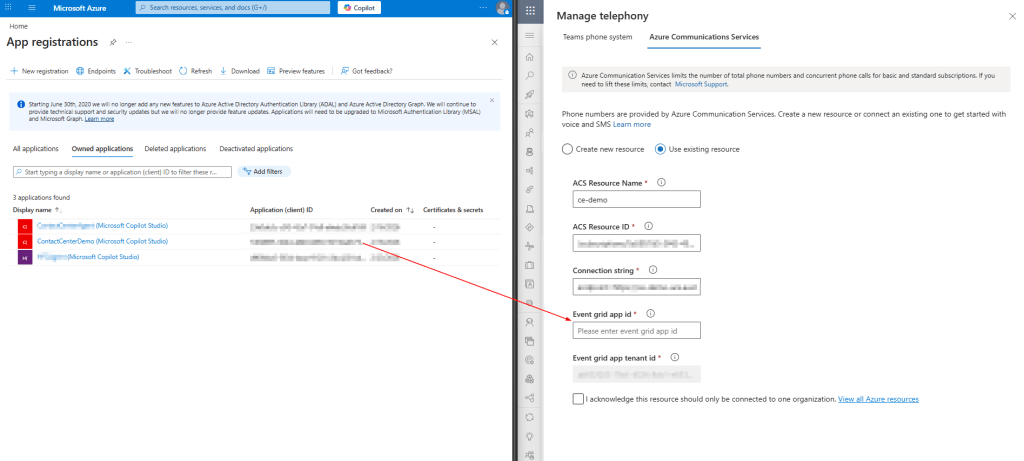
Enter the Event Grid App Id from the Azure Portal. Here are the steps to get it:https://learn.microsoft.com/en-us/dynamics365/customer-service/administer/voice-channel-connect-existing-resource#get-event-grid-application-and-tenant-ids-from-the-azure-portal
Note: If you have already created Agents from the Copilot Service admin center, it will show in the App Registration, and you can use its App Id as well.
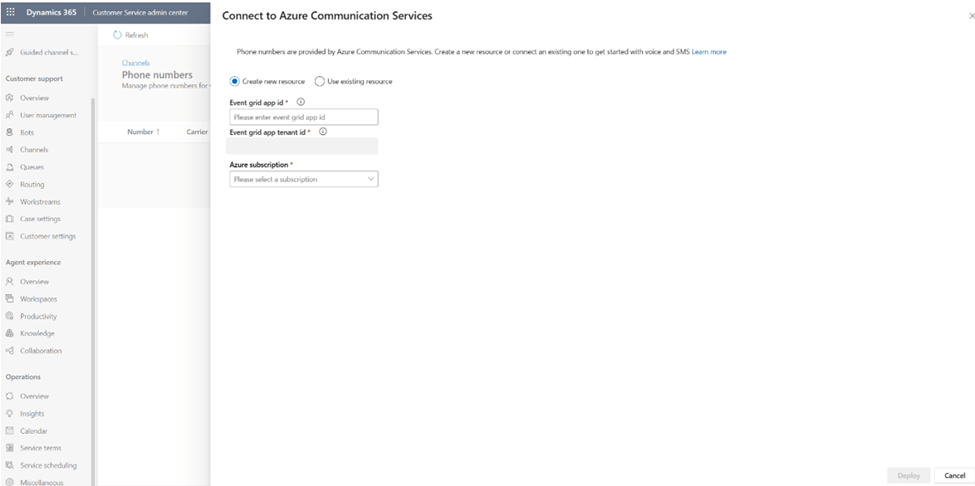
Connect to existing Azure resource:
- Copy name of the resource group into ACS Resource Name
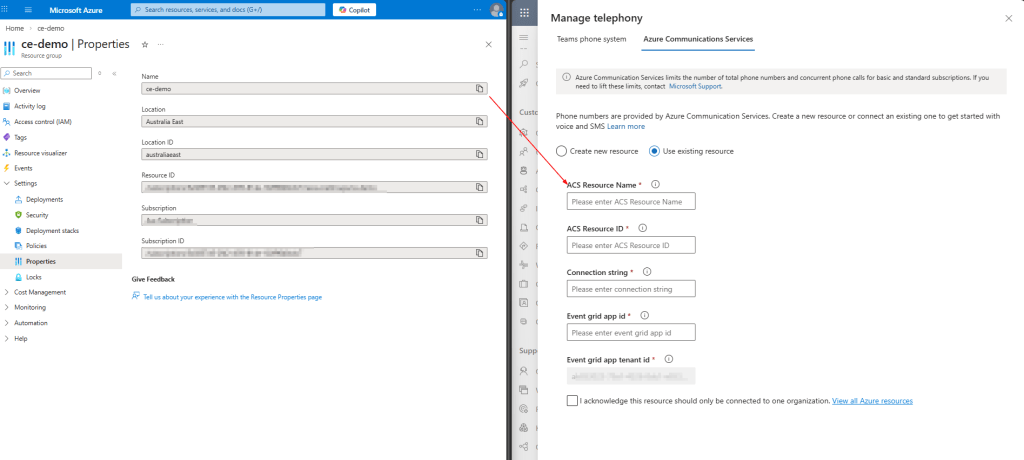
- Navigate to the Azure Communication Service resource under the resource group -> copy Id of the resource group into ACS Resource Id
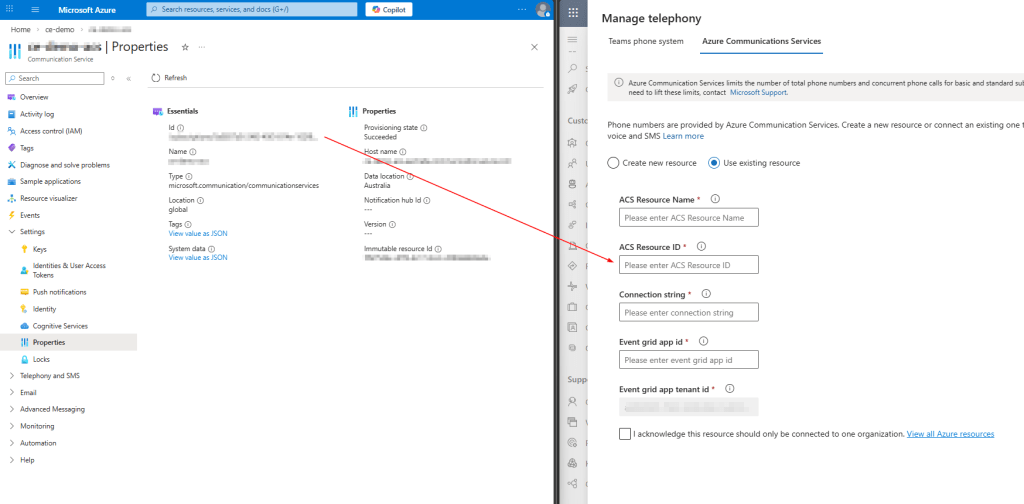
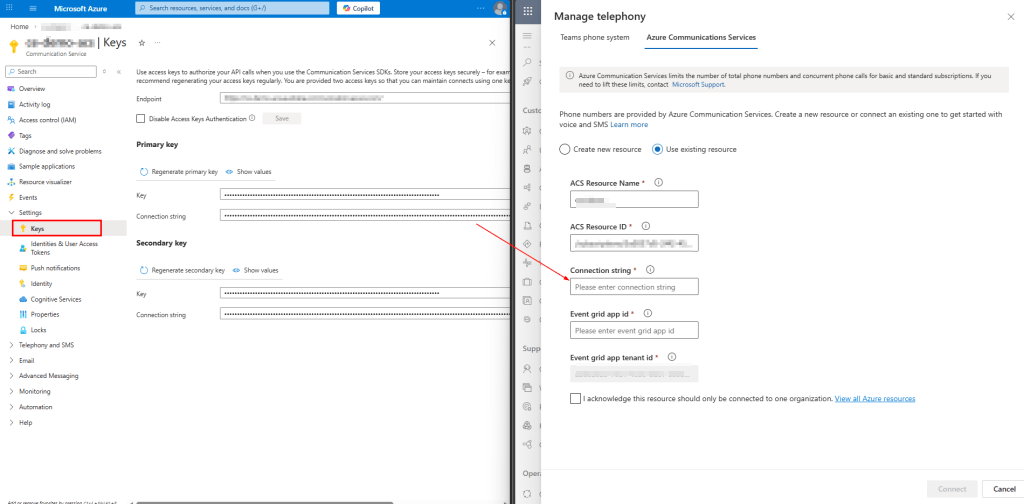
- Within the Azure Communication Service resource -> copy Connection string from Keys
- Copy the Application Client Id into Event grid app Id. If you have already created Agents fsrom the Copilot Service admin center, it will show in the App Registrationa nd you can use its App Id as well.
Here are the steps to get it:https://learn.microsoft.com/en-us/dynamics365/customer-service/administer/voice-channel-connect-existing-resource#get-event-grid-application-and-tenant-ids-from-the-azure-portal
After successfully connecting, the following message is shown.
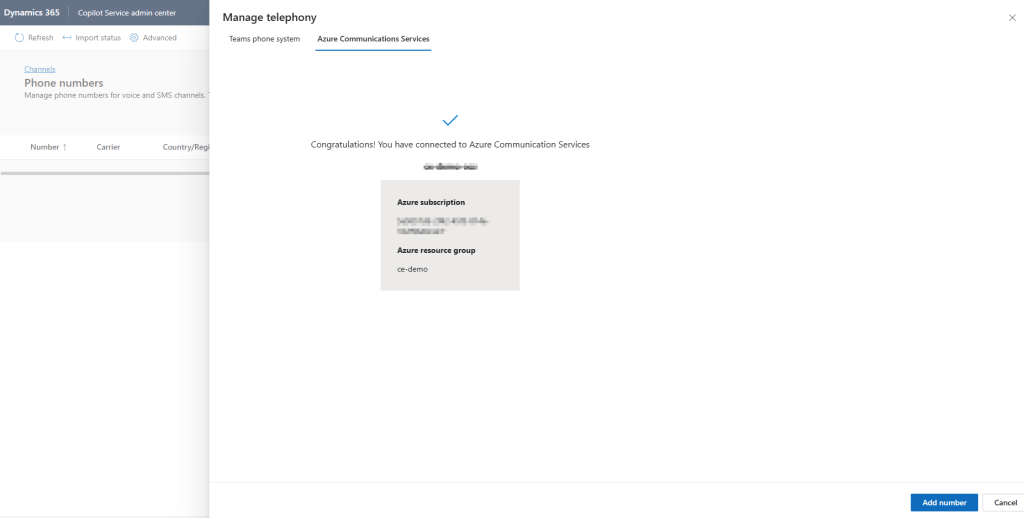
After this, below is the screen that you will see and you can either purchase a new phone number from here or bring your existing phone number from ACS.
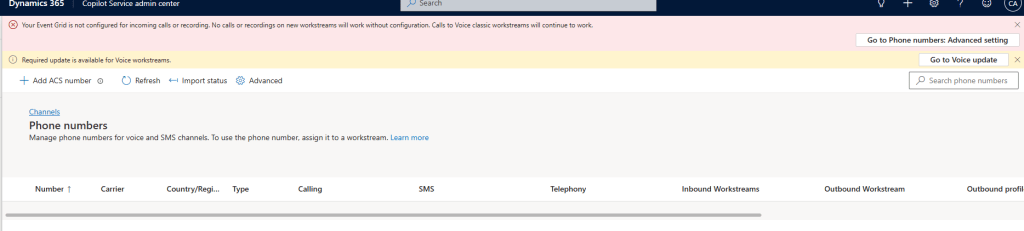
An error is displayed to show that the Event Grid is not configure which will be resolved once its setup. Details on configuring Event Grid are in Part 2.
Purchasing a new phone number from the Copilot Service admin centre:
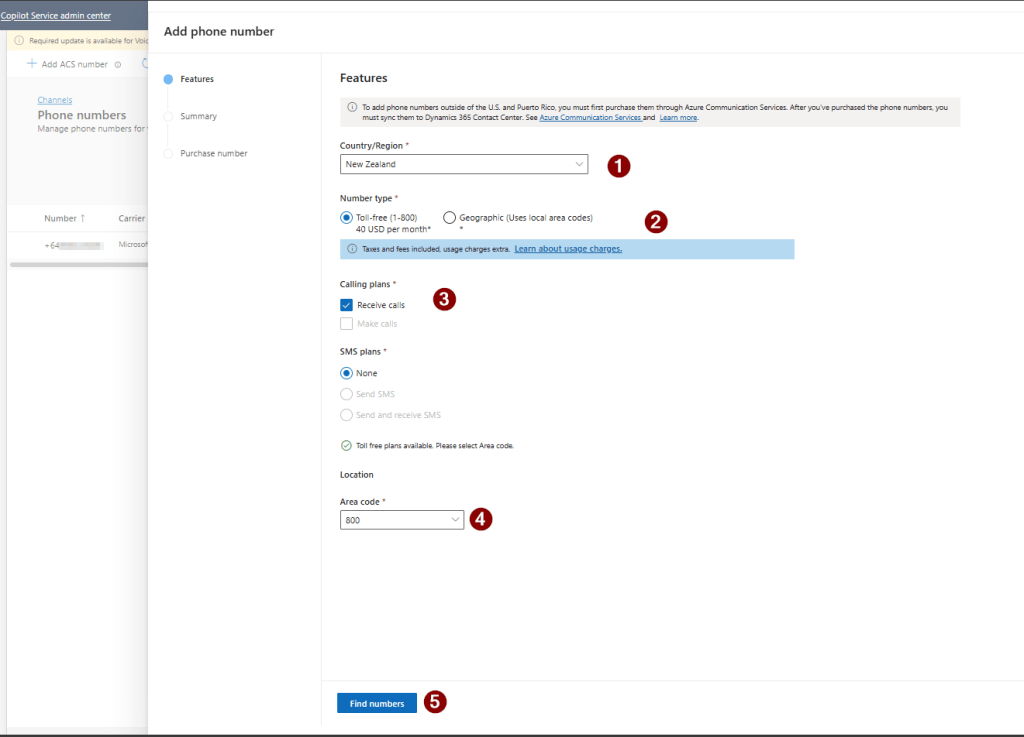
Click Add ACS Number
- Country/Region
- Number type (Toll-free / Geographic)
- Calling plan (Receive calls is minimum)
- SMS plan (only if needed)
- Area code
Choose the phone number type you want and click Find Phone Number.
From the list of numbers, add to the cart and proceed to purchase.
To know about the costs of the phone number and cost per different use cases, check here:https://learn.microsoft.com/en-us/azure/communication-services/concepts/pricing
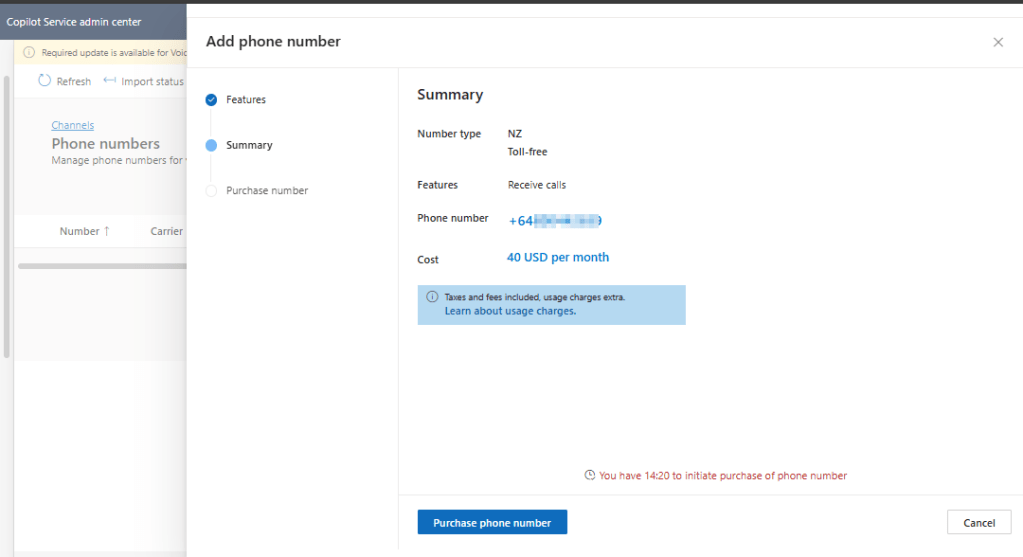
Once the phone number is purchased, it will be able to be used in the voice channel
Setting up an existing phone number purchased already:
Pre-requisite: Phone purchased already from ACS. Here are the steps: https://learn.microsoft.com/en-us/azure/communication-services/quickstarts/telephony/get-phone-number?tabs=windows&pivots=platform-azp-new
If you have already purchased a number in ACS or imported your telco-provided phone number via Azure direct calling, you can link it to the contact centre here.
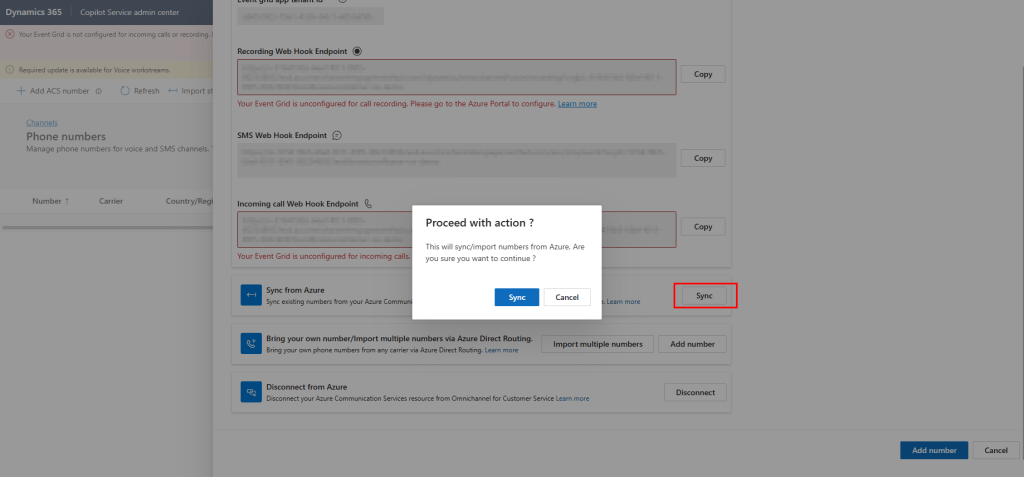
Tada! Phone number from ACS is synced and available to be used in the Workstreams

Summary
Now your org is connected to ACS, and you have a phone number in the Copilot Service admin centre.
Next (Part 2), we will configure Event Grid webhooks for incoming call/recording / SMS, as this is the key step to make voice events work.
Happy learning!
 Jeevarajan Kumar